Dec 26, 2022

Coding Camp December 2022 Awardee Announcement

Coding Camp December 2022 Awardee Announcement image

Timedoor Academy Coding Camp 2022 Batch 1 and Batch 2 has been held from 12-23 December 2022. With 200++ participants from our Online and Offline Classes in several areas including Jakarta, Surabaya and Bali. We also launched our new program, Comic Camp, which is held online.

Timedoor Academy offers 5 days coding and comics classes with a variety of programs that students can choose according to their interests. Coding Camp offers many courses including: Game Development, Website Development, App Development, Roblox, and Python. For Comic Camp, the program focuses on student’s creativity in making characters, developing stories, making sketches, to become complete comics.

Timedoor Academy sets a goal for students to become programmers and comic artists in 5 days by creating projects using the platform of their choice and challenging them to become digital experts!

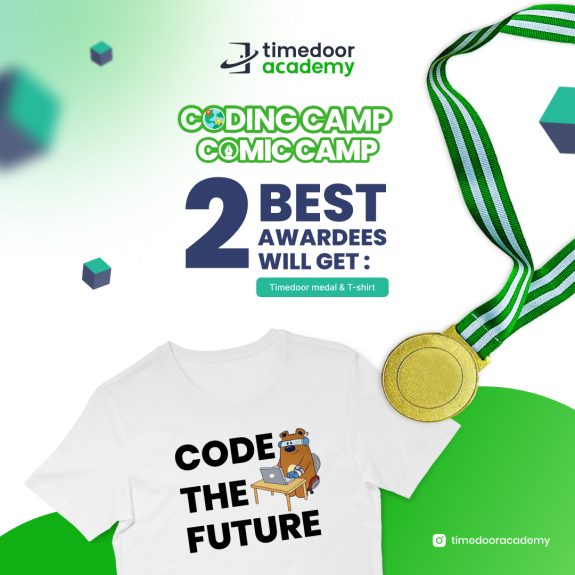
Today we are announcing the 2 best award from each category. Award recipients consist of the Best Project and the Best Participant. For the names award recipients can see below .

JUNIOR SCRATCH
AWARDEE CATEGORY NAME
Best Project Nathan Asmoro
Best Participant Made Arya Markandeya Shankara Kepakisan
JUNIOR KODU
AWARDEE CATEGORY NAME
Best Project Made Ngurah Ararya Daneswara
Best Participant Charise Davlyn Solim
KIDS CONSTRUCT BEGINNER + WEB
AWARDEE CATEGORY NAME
Best Project Nicholas Keane Rahardja
Best Participant Muhammad Jafarishadiq Radoslaw
KIDS CONSTRUCT ADVANCE
AWARDEE CATEGORY NAME
Best Project Made Nadira Averina Pragitya
Best Participant I Dewa Made Khrisna Adi Permana
KIDS ROBLOX BEGINNER
AWARDEE CATEGORY NAME
Best Project Ida Bagus Pradnyana Wedhanta
Steve Raffael Jerome Djayadi
Best Participant Cakradara Hosana Kastara Gea
Nicholas Caleb
KIDS PYTHON
AWARDEE CATEGORY NAME
Best Project Kezia M Shallom
Best Participant Abizar
TEENS PHASER
AWARDEE CATEGORY NAME
Best Project IGA. Ngurah Devasya Maha Putra
Best Participant Lionel Edric
TEENS ROBLOX BEGINNER
AWARDEE CATEGORY NAME
Best Project Danish Irham Aulia
Best Participant Fay Jetavana
TEENS WEB DEVELOPER
AWARDEE CATEGORY NAME
Best Project Sherlyn Julita Davila
Best Participant Naufarrel
TEENS PYTHON
AWARDEE CATEGORY NAME
Best Project I Gusti Ayu Isyana Shanti
Best Participant Marvel Kristian
TEENS APP DEVELOPER
AWARDEE CATEGORY NAME
Best Project Karen Abigail Tambunan
Best Participant Aimar Nazzal Al Firmansyah
COMIC CAMP
AWARDEE CATEGORY NAME
Best Project Kevia Rava Zhafira
Best Participant Riley Oviya A.

All award recipients will receive medals, exclusive T-shirts and merchandise from Timedoor Academy. Send your address to Timedoor Academy Admin for the process of sending.

Keep Reading

How to Use Figma for Kids: A Fun and Simple Digital Design Guide
In today’s digital era, graphic design has become an increasingly essential skill, even for kids. Design is not just about drawing or creating illustrations. It also helps children develop creativity, visual logic, and systematic thinking. One of the most popular and beginner-friendly design tools to introduce early on is Figma. This article will guide you on how to use Figma for kids in a fun and easy-to-follow way. Figma is a web-based design platform widely used by UI/UX professionals and graphic designers. But because of its intuitive interface and real-time collaboration features, Figma can also be a great learning tool for children, especially those curious about digital design, posters, invitations, app layouts, or even simple games. Why Kids Should Learn Digital Design Digital design is not only about aesthetics, but also about communication. Kids who learn design early tend to express ideas visually, organize information clearly, and feel more confident experimenting with their creativity. Design skills also open doors to other fields like illustration, app development, animation, and branding. By learning how to use Figma for kids, the design process becomes more engaging. They can instantly try, rearrange, and explore design elements without needing to install any additional software. What to Prepare Before Using Figma Before your child starts designing, here are some things to set up: Figma account: Create a free account at figma.com. Use a parent’s email and assist during setup. Device: A laptop or desktop with a stable internet connection works best. Simple design theme: Start with fun, easy projects like a birthday card or character illustration. Benefits of Using Figma for Kids Here are some of the main benefits of using Figma as a learning tool for kids: Enhances creativity and visual aesthetics Builds logical thinking through layout structure Boosts confidence through hands-on creation Encourages teamwork and collaboration in online settings Step-by-Step Guide: How to Use Figma for Kids Below are specific steps on how to use Figma for kids, including core features and how to guide them: 1. Introduce the Interface and Basic Tools After logging in to a Figma account, walk your child through the main elements of the workspace: Canvas: the blank area where they’ll build designs Top toolbar: includes tools like Move, Frame, Shape, and Text Left panel: shows the object structure (layers) Right panel: used to adjust color, size, position, and effects Let them freely draw circles, squares, or stars and experiment with colors. This unstructured play helps them get familiar with Figma naturally. This is also a great starting point in how to use Figma for kids in a stress-free way. 2. Start a New Project Click New Design File and let your child name it something fun like “My Poster” or “Cute Cat Project.” Then: Create a Frame using A4 size or mobile screen dimensions Add shapes via the Shape tool, then change colors on the right panel Add text with the Text Tool, and adjust font size, color, and position This step of how to use Figma for kids feels like drawing on a digital piece of paper—fun and intuitive. 3. Add Images and Illustrations To make their design more dynamic, help them insert images: Click File > Place Image and choose from your computer Or simply drag and drop into the canvas Use the Unsplash plugin to find royalty-free images directly inside Figma This makes it easier for kids to create digital greeting cards, collages, or mood boards. These small projects are practical examples of how to use Figma for kids in real-life situations. 4. Create Simple App or Game Layouts For older kids, try introducing them to basic app layout design: Use Frames sized for iPhone or Android Add titles, icons, and buttons Turn elements into Components for duplication Use Prototype mode to simulate screen transitions This is a creative and exciting way to teach design logic and basic UX thinking. It’s also a more advanced stage in how to use Figma for kids who want to go deeper. 5. Collaborate and Present Figma is perfect for collaborative learning. Kids can: Click Share to invite parents, teachers, or friends Use Presentation Mode to view their design full-screen Receive comments directly on the canvas and learn from feedback These interactions help kids learn how to present and improve their ideas. How to use Figma for kids can extend into valuable lessons on teamwork and communication. Combine with Online Design Classes To support their learning journey, consider enrolling your child in an online design course. Timedoor Academy offers kid-friendly design programs based on fun projects and personalized learning. Learning how to use Figma for kids is much easier when supported by friendly mentors and structured activities. Tips for Parents to Support Learning To make the learning process smoother, parents can: Be present during the early stages, then give room to explore Ask about their designs and encourage storytelling Avoid focusing on perfection—celebrate creativity instead Try designing together as a bonding activity Ready to Introduce the World of Design? Introducing your child to digital creativity can begin with simple tools like Figma. With the right guidance and playful approach, how to use Figma for kids becomes a fun activity that sharpens logic, builds visual confidence, and sparks interest in technology. Timedoor Academy is here to support your journey. With interactive online classes and friendly instructors, your child can learn to design with confidence. Try a free class today and help your child discover their design potential from an early age.
Winners’ Announcement of Bootcamp December 2024
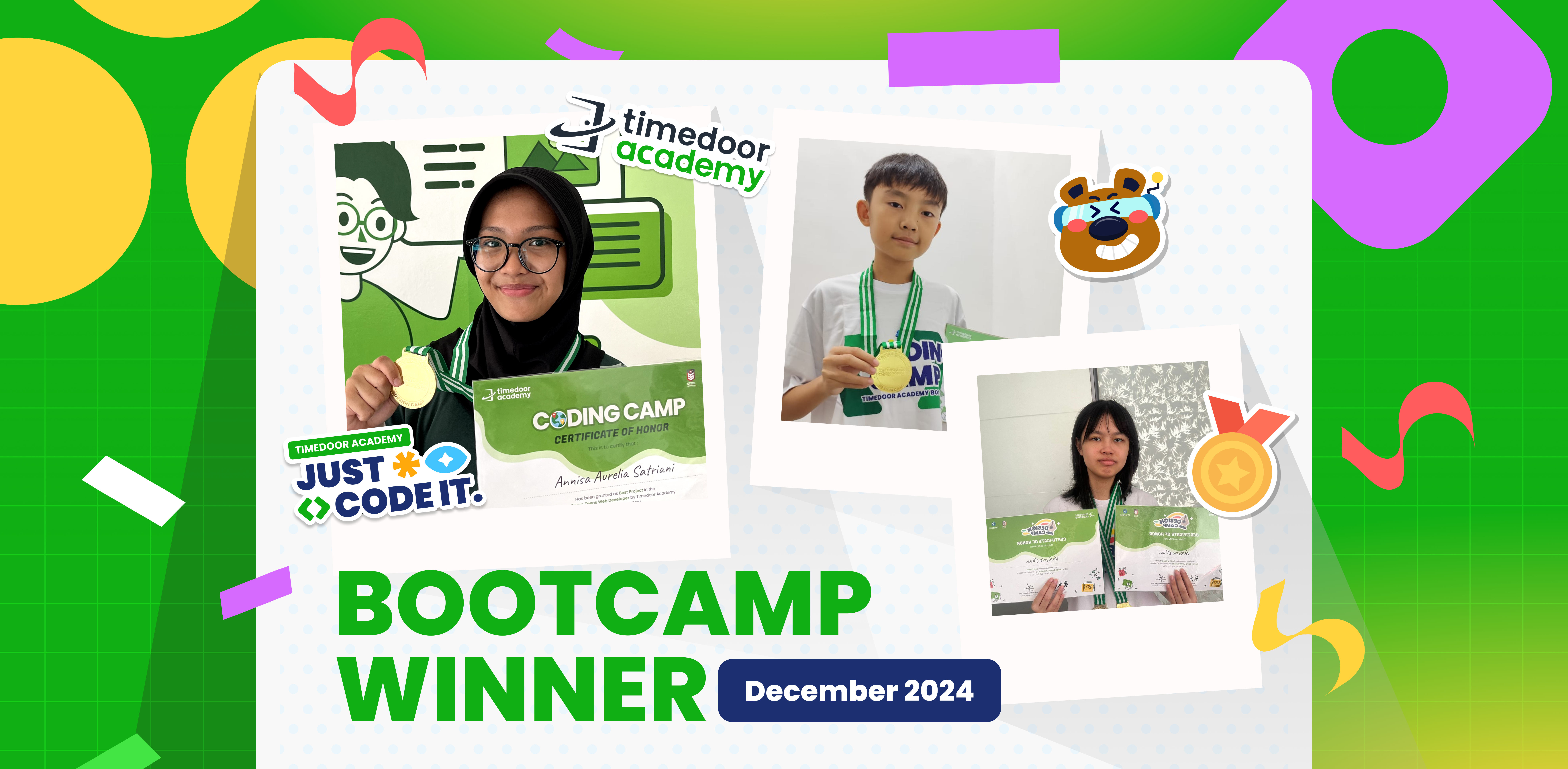
Timedoor Academy BootCamp 2024 was held from December 9 to 27, 2024, with over 200 participants from both Online and Offline classes across Indonesia. This year, we also launched two exciting new programs: Kids Machine Learning and Entrepreneurship, which generated even more excitement among our students. Timedoor Academy offers a dynamic 5-day BootCamp, featuring various programs that allow students to choose based on their interests. The Coding Camp includes a wide range of courses such as Game Development, Website Development, Python Development, Roblox Development, Artificial Intelligence, and Internet of Things (IoT). Meanwhile, our Design Camp focuses on nurturing students’ creativity through programs like Animation Creation, Branding Design, UI/UX Design, and Comic Making. At Timedoor Academy, we aim to help students become skilled programmers, designers, and comic artists in just 5 days by challenging them to create top-tier projects using cutting-edge platforms. This experience equips them to become digital experts ready to tackle the challenges of today and tomorrow! Today, we’re excited to announce the top award recipients from each program category. The award winners are recognized for their Best Project and Best Participant achievements. Check out the list of winners below! JUNIOR ANIMATOR CATEGORY PARTICIPANT’S NAME BRANCH Best Project Malik Akbar Pahlevi Cimanggu, Bogor Best Participant Made Indah Widyasari Renon JUNIOR 3D GAME CATEGORY PARTICIPANT’S NAME BRANCH Best Project Ibra Maimun Medan Best Participant Azfar Milo Respati Gatsu JUNIOR CONSTRUCT CATEGORY PARTICIPANT’S NAME BRANCH Best Project Randall Elmer Keeley Sanjaya Citraland Best Participant Brigita Clarisa Kanaya Bandaso Cikarang KIDS CONSTRUCT BEGINNER + WEBSITE CATEGORY PARTICIPANT’S NAME BRANCH Best Project Muhammad Iqbal Rachman Jambi Best Participant M.Abizar Maimun Medan KIDS MACHINE LEARNING CATEGORY PARTICIPANT’S NAME BRANCH Best Project Nabila Syahquita Pontianak Best Participant I Gede Agasthya Putra Darmawan Gatsu KIDS ANDROID APP DEVELOPER CATEGORY PARTICIPANT’S NAME BRANCH Best Project Raisa Raya Sabriya Jambi Best Participant Fatih Rizqi Mubarok Jambi KIDS ROBLOX CATEGORY PARTICIPANT’S NAME BRANCH Best Project Tyo Putra Daud Gorontalo Best Participant Natanael Halim Cikarang KIDS PYTHON CATEGORY PARTICIPANT’S NAME BRANCH Best Project Reinhart Amadeus Christianto Online ID Best Participant Olivia Kisya Mahendra Jimbaran KIDS AI DEVELOPER CATEGORY PARTICIPANT’S NAME BRANCH Best Project Jason Andrew Cikarang Best Participant Gabriel Prathama Wijaya Online ID TEENS PHASER CATEGORY PARTICIPANT’S NAME BRANCH Best Project Naufal Arfan Online ID Best Participant Muhammad Rizki Mahendra Online ID TEENS WEB DEVELOPER CATEGORY PARTICIPANT’S NAME BRANCH Best Project Arkaan Fatih Safaraz Pekanbaru Best Participant Faeyza Nur Huda Online ID TEENS ROBLOX CATEGORY PARTICIPANT’S NAME BRANCH Best Project Affa Danendra Sarwoko Pontianak Best Participant Muhammad Vedro Alfadillah Pontianak TEENS PYTHON CATEGORY PARTICIPANT’S NAME BRANCH Best Project Gregory Gaven Greenlake Best Participant Komang Gede Bayu Sefti Wiguna Renon TEENS APP DEV CATEGORY PARTICIPANT’S NAME BRANCH Best Project I Gusti Ayu Ari Cahya Widiadnyani Gatsu Best Participant Valkyrie Chan Online ID TEENS AI DEV CATEGORY PARTICIPANT’S NAME BRANCH Best Project Filigon Bryliant El Fikri Sirait Kelapa Gading Best Participant Aghniya Kelapa Gading  COMIC KIDS CATEGORY PARTICIPANT’S NAME BRANCH Best Project Razita Maryam Hernanda Online ID Best Participant Christopher Martin Susanto Online ID  COMIC TEENS CATEGORY PARTICIPANT’S NAME BRANCH Best Project Joanne Gracia Susanto Online ID Best Participant Ulinnuha Inma Ghozali Online ID  DESIGN BRANDING CATEGORY PARTICIPANT’S NAME BRANCH Best Project Kanaka Mahabarata Online ID Best Participant Anja Ruci Berlian Online ID  DESIGN ANIMATION CATEGORY PARTICIPANT’S NAME BRANCH Best Project Manuel Angelo Siburian Online ID Best Participant Justin Clarence Luckijaya Gatsu  DESIGN UI/UX WEB CATEGORY PARTICIPANT’S NAME BRANCH Best Project Jovan Wang Online ID Best Participant Jonathan Wang Online ID IOT KIDS & TEENS CATEGORY PARTICIPANT’S NAME BRANCH Best Project Kevin Hansel Wibowo Citraland Best Participant Kadek Nirwasita Danaswara Gatsu
Cara Membuat Game di Roblox untuk Anak-Anak
How to Create a Roblox Game for Kids: Easy Guide
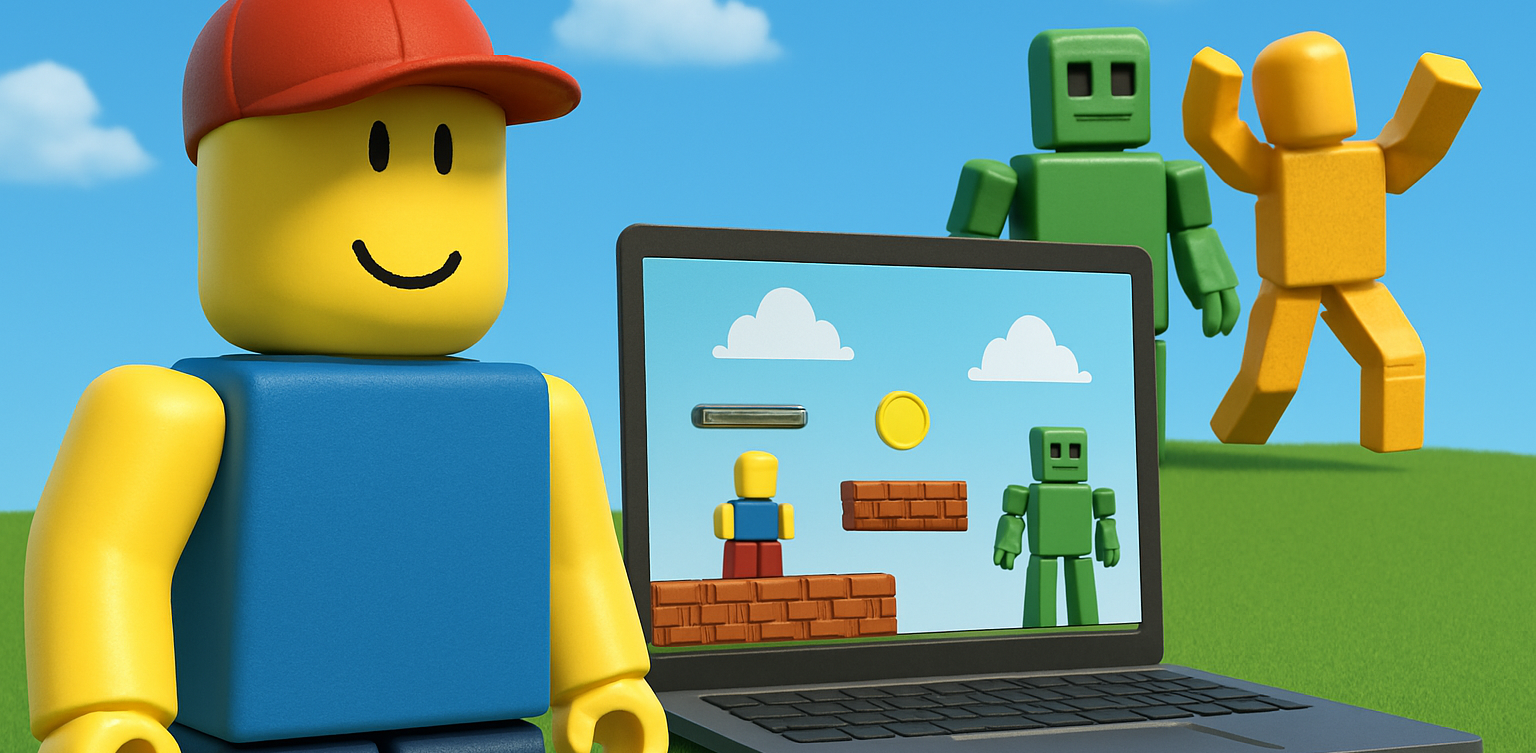
Roblox is a fantastic platform that allows kids to create, play, and share their own games. Learning how to create a game in Roblox can be a rewarding and fun experience for children, helping them develop creativity and basic coding skills. In this easy guide, we’ll walk you through step-by-step how your child can start creating their very own Roblox game. Creating Roblox Game For Kids Step 1: Setting Up Roblox Game Studio For Your Kids To create games, kids first need Roblox Game Studio. Here’s how to set it up: Log in to your Roblox account. Go to the Roblox Studio website and click on "Start Creating." Follow the simple instructions to install Roblox Studio on your computer. Step 2: Choose a Roblox Game Template For Your Kids Roblox Game offers several easy-to-use templates to help beginners: Open Roblox Studio. Select "New," and then choose a template like "Obby" (Obstacle Course) or "Baseplate." Step 3: Customize Your Roblox Game For Your Kids Encourage your child to personalize their roblox game: Drag and drop different objects from the Toolbox. Click objects to move, rotate, or resize them. Customize colors and textures to make the game visually appealing. Step 4: Add Simple Roblox Gameplay Elements For Your Kids Make the roblox game interactive: Add checkpoints or obstacles in an Obby game. Use scripts from the Toolbox to easily add functionality. Test the game frequently by clicking the "Play" button at the top. Step 5: Publish and Share Your Kids Roblox Game Once your roblox game is ready, follow these simple steps: Click "File" then select "Publish to Roblox." Enter a fun and descriptive name for the game. Choose settings like visibility (Public or Private). Click "Create" to publish your game. Tips for Kids Creating Roblox Game Start simple: Create a basic game and gradually add more features. Explore tutorials: Roblox provides great beginner tutorials. Experiment: Don’t be afraid to try new things Start Your Kids Roblox Game Journey Today! Creating Roblox games is an excellent way for kids to express creativity while learning valuable skills. Follow our simple steps and your child can easily build their first Roblox game today. Want more learning experiences? Timedoor Academy offers free classes to help your kids dive deeper into coding and game design. Join the Free Trial Class now and keep the fun going!
float button