Apr 17, 2023

Roblox Game Coding Tutorial for Beginners

Roblox Game Coding Tutorial for Beginners image

Roblox is a gaming platform that gives its users and players freedom to create and play their own games worldwide.

The experience of playing Roblox which is simulate the real world becomes a special excitement for the players. The games in Roblox also have various challenges so that people don’t easily get bored playing Roblox.

People who play games as their hobby will eventually wonder how they make games in Roblox and want to create their own games. However, a lot of people give up early because they think creating a Roblox game requires some advanced coding skills.

Do you experience the same feeling? Don’t worry because the following blog is a tutorial on how to create a Roblox game for Beginners, for those who’s trying out coding for the first time and for those who don’t have experience creating a game at all.

Before we start creating a game, you have to prepare the following things:

  • Create a Roblox account on the Roblox Official website (could be the same account you use for playing)
  • Download the Roblox Studio application from the official website
  • Require a Mouse
  • Remember how to operate the Mouse and Keyboard in Roblox Studio according to the following table

Mouse Control.png

So if you’re ready, let’s follow the steps below to start making your first Obby game!

Try out the completely game on the following link: My First Obby

This Obby game is inspired by the Mega Easy Obby game which has many varied obstacles. Now in this tutorial, we will make a total of 6 kinds of obstacles. To make it easier for you to learn, this article will be divided by the type of obstacles you will create while learning how to use the tools in Roblox Studio!
Create New Project

Open the Roblox Studio in your computer. You will see this appearance.Choose Baseplate.png

Select the Baseplate and make sure the appearance looks like the image below.

Baseplate Open.png


If the Explorer Bar and the Properties doesn’t appear on the right side, click on the View Menu on top and click the options Explorer and Properties.

View Menu.png

If there is a Bar on the left side that is open, you can just close it because we don’t use it, so it will not interfere your view in the Editor. Click the Close button.

Close Left Bars.png

Because we don’t need the Baseplate, we can delete it by going to the Explorer Bar on the right. Right click on the Baseplate then select Delete. You can also use the Delete key on the keyboard.

Delete Baseplate.png

Has your Baseplate disappeared from the Editor?

Great! Now let’s start building the Game!


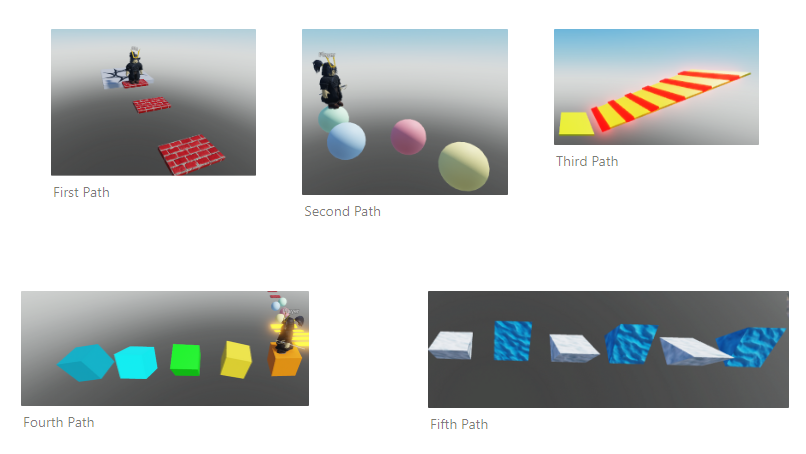
Create Path 1

First Path.png

Making the first Path is super easy! Follow the steps below to create Path 1:

Add a new Part via the Home Menu. Click Blocks and make sure it appears above the Spawn Point.

Add New Part.png

Do you still remember how to operate the Mouse and Keyboard mentioned above?

Click F on the Keyboard to bring Camera closer to the Block

Focus.png
Now we are going to resize the Blocks, but to get the right size you can add a Player Dummy.

Go to the Avatar Menu at the top, click Rig Builder. Now for the type of Rig you can choose whichever you want! The following example will use My Avatar.

Spawn Rig.png
If it has been clicked, your Avatar Character will appear in the Editor.

Now it’s time to resize the Blocks using the Scale tool.

Go to the Home Menu at the top and click on the Scale option. Roblox is a 3D design editor which means each object will have 3 Vectors, namely X, Y, and Z which are distinguished by the colors Red, Green, and Blue.

Scale.png
So drag the round sign to resize it. Set the right size for Player.

Now, let’s change the Material and Color!

To change the material, click on the Material Manager in the Home menu at the top and the Material Manager bar will appear. This is where you can set whatever material you want.

Material.png

Point the mouse to the desired material then you have to click the arrow button on the top right to apply the material to the Block. For example, use the Brick material.

Select Material.png


Then the result will look like this:

New Material.png


Then change the color of the Block by clicking the Color option in the top Home Menu and selecting the desired color. For example, the color Crimson.

New Color.png


Finally, activate the Anchor property so that the Block doesn’t fall while playing and locked in its current position.Anchored.png
Let’s duplicate it into 3 pieces. But before that, first turn on Snap to Grid so that each Block has the same distance.

Go to the Model Menu and turn on Move property on the Snap to Grid section. Set the value to 8 stud

Snap to Grid.png

So now right click on Block and select Duplicate.

Duplicate.png

Duplicated Blocks are right in the first Block’s position! So use the Move tool to move it 8 studs.Do the Duplicate step again so that it produces 3 Blocks.

Duplicate Brick.png


Create Path 2

Second Path.png

Add a Sphere-shaped Part.

Add Sphere

Move the Sphere as many as 8 studs using the Move tool.

Then change the color just like the image below.

Duplicate Sphere.png
So now we’re going to make the path a little difficult by applying a Zigzag pattern

Turn off Move property on Snap to grid first. Then move it to the right and left using the Move tool. The result should be like thisSecond Path.png


Create Path 3


Add Block Part, apply Smooth Plastic Material and the color New Yeller.

Duplicate and change the Orientation upwards using the Rotate tool. Resize the second Block to be longer.


Next, we are going to add Kill Bricks on the Blocks.

Duplicate the longer Block, Resize and Place it like the example below. Change the Material to Neon and the Color to Really Red.

Now, let’s add a Script inside the Kill Brick by hovering your Mouse to the Brick in Workspace and click plus icon. Choose Script.

Delete code print(“Hello World”) and type the following code.


Duplicate Kill Brick multiple times until it covers the Block like this.

And voila! The Kill Bricks obstacle are ready!


Create Path 4

Fourth Path.png


Before creating Path 4, let’s add a Sphere first

Blue Sphere.png


Now add a Block Part and set the size to be a cube. Use Plastic material and set the color to Orange.

New Cube.png


Duplicate and change the Orientation so the obstacles become more challenging.

Fourth Path.png


Create Path 5

Fifth Path.png

Now let’s use the Wedge Part for Path 5!

Add Wedge Part and adjust its size using the Scale tool.

New Wedge.png


Duplicate the Wedge Part and move it 8 Studs apart. Remember to use Snap to Grid!

Then turn on the Rotate property value of 180 degrees on the Snap to Grid option so that the second Wedge faces the other way.

2 Wedges.png


Next, change the Material to Sand and the Color to White and Blue. We will make 6 Wedges, so duplicate the 2 Wedges at once by blocking both Wedges and duplicating them.

2 Wedges Selected.png


Challenge: Create Finish Point

Try using the Cylinder Part with a size and position like this independently. Duplicate it and stack it upwards by varying the color from a lighter color to a darker color.

New Cylinder.png

Challange.png

Lastly, don’t forget to Anchor all the Parts together! Use the Scroll Wheel to Zoom Out and block block all the parts. Then click on Anchor.

anchor all

It’s Finish! Use the Play button in the Home menu to test out your first Roblox Game!

Play.png


Timedoor Academy provide Roblox Program for Kids and Teens, check this Roblox Introduction Video out!
Keep Reading

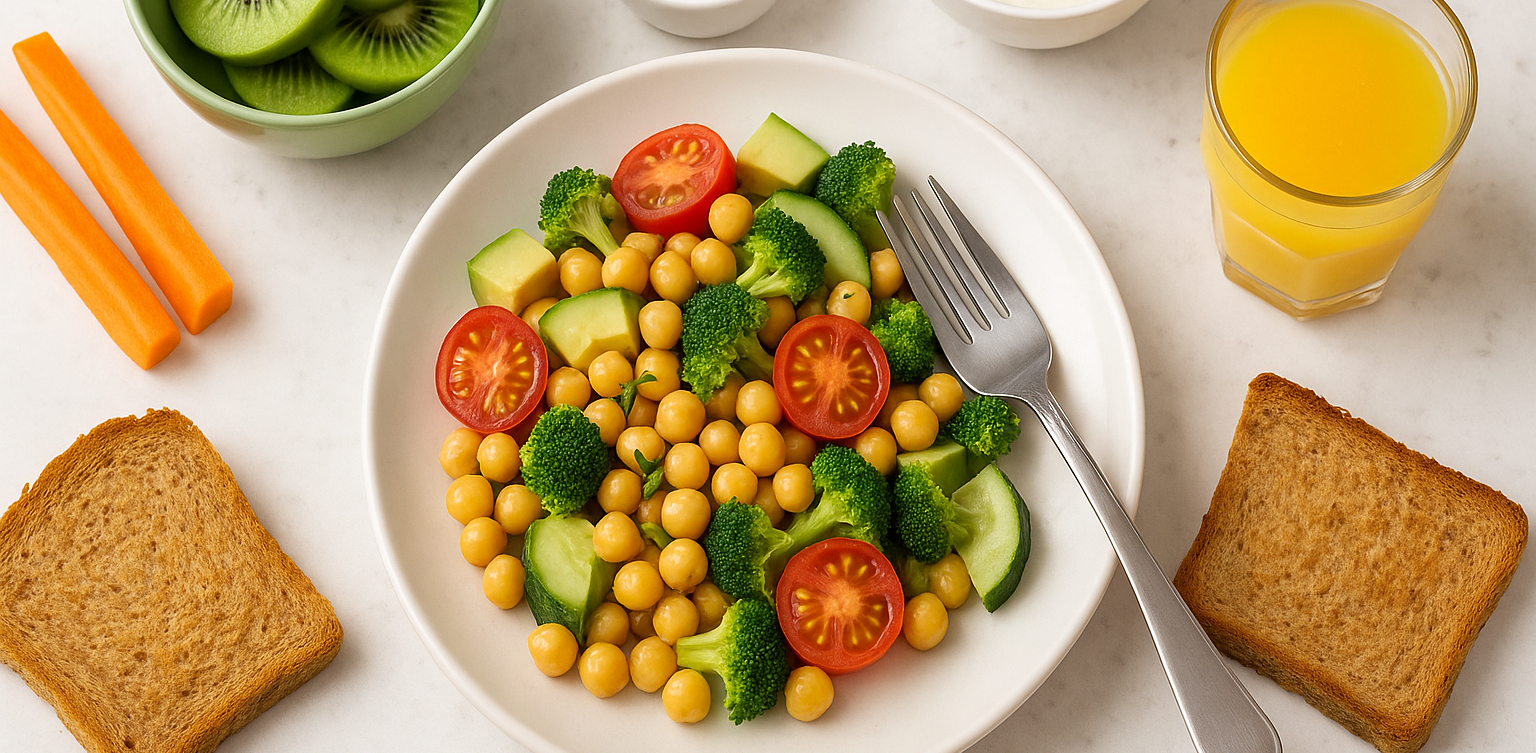
resep makanan sehat untuk anak
Healthy Food Recipes for Kids: Delicious and Nutritious Ideas for 2025
Finding healthy food recipes for kids that are both nutritious and loved by little ones can feel like a daily challenge. Many parents worry about picky eaters, sugar-filled snacks, and time-consuming meal prep. If you are searching for healthy food recipes for kids, you are in the right place. This article features easy, tasty, and nutritious meals that support your child’s growth and make healthy eating more exciting. Whether for breakfast, lunch, or snacks, these healthy food recipes for kids are designed to be simple and kid-approved.   Why Healthy Eating Matters for Kids Children need a balanced diet to grow strong and stay focused throughout the day. Healthy food recipes for kids help introduce essential nutrients like protein, fiber, vitamins, and minerals in fun and appealing ways. A variety of colorful, whole foods can encourage better eating habits and even reduce cravings for processed snacks.   1. Rainbow Veggie Quesadillas Why kids love it: They are colorful, cheesy, and easy to eat with fingers. Ingredients: 1 whole wheat tortilla ½ cup shredded cheddar or mozzarella cheese ¼ cup chopped bell peppers (red, yellow, green) ¼ cup corn 2 tablespoons chopped spinach Olive oil for cooking Instructions: Heat a pan and add a bit of oil. Place the tortilla on the pan and sprinkle cheese and vegetables on one half. Fold the tortilla and cook both sides until golden brown. Cut into triangles and serve warm. Tip: Using whole grain tortillas adds extra fiber to the meal.   2. Fruity Yogurt Parfaits Why kids love it: It looks like dessert, but it is a nutritious snack or breakfast. Ingredients: 1 cup plain Greek yogurt ½ banana, sliced ½ cup mixed berries (fresh or frozen) ¼ cup granola 1 teaspoon honey (optional) Instructions: Layer yogurt, fruit, and granola in a cup. Repeat the layers and drizzle with honey if desired. Tip: Greek yogurt is rich in protein and calcium for strong bones and muscles.   3. Mini Veggie Muffins Why kids love it: They are soft, tasty, and fun to eat. Ingredients: 1 cup grated zucchini or carrot 1 egg 1 cup whole wheat flour ½ teaspoon baking soda ½ teaspoon salt ½ cup milk ¼ cup olive oil ¼ cup shredded cheese Instructions: Preheat oven to 180°C (350°F). Mix all ingredients in a bowl. Pour into greased mini muffin trays. Bake for 15 to 20 minutes. Tip: These muffins are perfect for lunchboxes or after-school snacks.   4. Chicken and Veggie Rice Bowls Why kids love it: They get to build their own bowl with their favorite ingredients. Ingredients: 1 cup cooked brown rice ½ cup cooked chicken pieces ¼ cup steamed broccoli ¼ cup chopped carrots 2 tablespoons sweet corn 1 tablespoon soy sauce or sesame dressing Instructions: Add rice to a bowl and arrange chicken and vegetables on top. Let kids mix the ingredients themselves. Drizzle lightly with sauce. Tip: Use lean chicken and brown rice for more protein and fiber.   5. Baked Sweet Potato Fries Why kids love it: They are crispy on the outside and soft inside. Ingredients: 2 sweet potatoes 1 tablespoon olive oil ½ teaspoon paprika ¼ teaspoon salt Instructions: Preheat oven to 200°C (400°F). Peel and cut the sweet potatoes into strips. Toss with olive oil, paprika, and salt. Bake for 25 to 30 minutes, flipping halfway. Tip: Sweet potatoes are rich in vitamin A and antioxidants.   Making Healthy Eating Fun for Kids Here are a few ways to make healthy food recipes for kids even more enjoyable: Use cookie cutters to shape fruits, sandwiches, and pancakes Let kids help with washing, mixing, and serving Add a variety of colors to every meal Keep meals simple and avoid pressure during mealtime   Healthy Meals, Smarter Minds With the right approach, healthy food recipes for kids can be simple, delicious, and part of a fun daily routine. The meals shared above are designed to keep your child nourished and satisfied throughout the day. From rainbow quesadillas to sweet potato fries, each dish is packed with essential nutrients that growing kids need. And while you're helping your child eat better, consider supporting their brain development too. At Timedoor Academy, we offer online coding classes for kids that are just as exciting and educational as a well-balanced meal. Learning to code improves logical thinking, creativity, and confidence. Sign up for a free trial class at Timedoor Academy today and give your child the tools to succeed both in the kitchen and in the digital world.
The Role of Parents in Kids Digital Learning: Practical Tips for 2025
Digital learning is now a core part of how kids learn. Since the pandemic, many have grown used to studying through screens, whether from school platforms or extra classes like coding, languages, or math. But behind the ease of technology, the role of parents in kids digital learning is still key to making learning effective. Some might think digital learning makes kids more independent, but not all are ready to manage time, stay focused, or understand lessons on their own. This is where the role of parents in kids digital learning remains essential. Parents are not just supervisors but active guides who support and respond to their kids’ needs. Setting a Healthy Learning Rhythm Time management is one of the biggest challenges in digital learning. Without a teacher physically present, kids can get distracted easily when learning at home. Parents can help by building a consistent routine that balances study and rest. This structure helps shape responsible habits early. It is one of the simplest ways to support the role of parents in kids digital learning and helps build long-term discipline. Creating a Supportive Learning Space Focus depends a lot on environment. At home, distractions like TV, traffic noise, or a younger sibling playing nearby can make learning harder. Parents should create a quiet, comfortable study spot where kids can focus better. Make sure tools like laptops, headphones, and internet connections are working properly. These technical basics matter more than they seem. Helping with this setup is a key part of the role of parents in kids digital learning at home. Offering Emotional Support Digital learning can feel isolating. Kids may feel stuck, frustrated, or unsure who to talk to when lessons are hard. That is why emotional support is just as important as helping with assignments. Simple questions like “Was today’s class fun?” or “Anything that confused you?” can make a big difference. Being emotionally available is a powerful part of the role of parents in kids digital learning, helping kids stay motivated and confident. Guiding Tech Use with Balance Technology can help learning, but it can also be distracting. Kids might be tempted to play games or watch videos during study time. That is why parents should stay involved by setting rules and limits that feel fair. Use screen timers, focus modes, or parental control tools. More importantly, explain why these rules exist so kids see them as helpful, not harsh. Balanced tech use is part of the role of parents in kids digital learning that keeps learning on track. Becoming a Learning Partner Parents do not have to know everything their kid is learning. Just being involved by listening to a project explanation or joining an online session shows support. Being a learning partner means exploring together and showing real interest. This shared effort makes learning more engaging and strengthens the role of parents in kids digital learning by building trust and motivation. Why Parents Still Matter in Kids' Digital Learning Technology has made learning more flexible, but the role of parents in kids digital learning is still irreplaceable. From setting routines to offering encouragement, parents help make learning not only effective but enjoyable. By staying engaged and present, you give your kid the best chance to succeed. You become the connection between digital tools and real growth. Support Your Kid’s Digital Learning with Timedoor Academy Looking for a better way to support your kid’s learning at home? Timedoor Academy offers fun and interactive online classes in coding, math, and robotics. All programs are designed specifically for kids. Try a free class today and discover how we make your role of parents in kids digital learning easier and more meaningful.
4 Bahasa Pemrograman Terbaik Untuk Anak
Top 4 Programming Languages for Kids
In today’s digital-first world, teaching children how to code is becoming just as essential as teaching them math, reading, or science. Coding builds logical thinking, creativity, and problem-solving skills. These are abilities that are crucial for success in any future career. But with so many programming languages out there, many parents wonder: Where should my child start? The answer depends on your child’s age, interests, and learning style. Some languages are visual and beginner-friendly, while others offer more complexity for older or advanced learners. In this article, we’ll break down the top 4 programming languages for kids, explaining what makes each of them great and how to choose the right one for your child’s coding journey.   Why Should Kids Learn Programming Language In Coding? Before we jump into the list, let’s quickly look at why coding is so valuable for children: Boosts logical thinking and analytical skills Strengthens creativity and imagination Improves academic performance, especially in STEM subjects Builds persistence and resilience through problem-solving Prepares them for a future in a tech-driven world Coding also helps children become creators of technology, not just passive users.   1. Programming Language In Coding: Scratch Best for Kids Aged 6 to 12 Scratch is a block-based programming language developed by MIT, specifically for children and beginners. Instead of typing code, kids drag and drop visual blocks to build animations, games, and interactive stories. Why it’s great: No previous coding knowledge needed Highly visual and engaging Encourages storytelling, creativity, and experimentation Free and web-based Scratch is ideal for young learners who enjoy art, games, or creative play. It’s fun, easy to understand, and extremely rewarding.   2. Programming Language In Coding: Python Best for Kids Aged 10 and Up Python is one of the world’s most popular programming languages and a great choice for kids who are ready to move beyond visual coding. Its syntax is clean and readable, making it one of the easiest text-based languages to learn. Why it’s great: Beginner-friendly with real-world applications Used in data science, AI, game development, and automation Loads of free resources and tutorials available Great for building games, quizzes, and mini apps Python is perfect for curious kids who enjoy solving problems and want to dive deeper into the tech world.   3. Programming Language In Coding: JavaScript Best for Kids Aged 11 and Up JavaScript is the go-to language for web development. If your child is interested in how websites work or wants to build their own online games or tools, JavaScript is an exciting and rewarding option. Why it’s great: Teaches how to make websites interactive Encourages real-time experimentation in the browser Can be combined with HTML and CSS for full website building Great for creative projects like online games and visual effects JavaScript is ideal for tweens and teens who are internet-savvy and want to bring their ideas to life on the web.   4. Programming Language In Coding: Blockly Best for Kids Aged 7 to 10 Blockly is a visual coding language like Scratch but with a twist. It also shows the actual code behind the blocks. It’s designed to help children transition from block-based programming to real text-based coding. Why it’s great: Easy to use with a visual interface Builds understanding of programming logic Bridges the gap between Scratch and Python Often used in educational robots and coding kits Blockly is excellent for kids who are ready to go beyond simple blocks but not quite ready for full typing-based code.   Quick Guide by Age For Kids To Choose Programming Language Age Group Recommended Language 6 to 8 Scratch or Blockly 9 to 12 Scratch, then Python 12+ Python or JavaScript   How Can Parents Support Their Kids Coding Journey? Explore coding platforms together such as Timedoor Academy Choose fun, project-based learning activities Encourage creativity by allowing your child to build what they love Celebrate progress at every step, no matter how small   Ready to Help Your Kids Start Coding? The best programming language for your child is the one that fits their age, interest, and learning pace. Whether they’re creating their first animation in Scratch or developing a game in Python, every coding experience empowers them with skills for the future. At Timedoor Academy, we provide structured and engaging online coding classes for children of all ages. Our programs are designed to turn beginners into confident young coders through hands-on learning and creative projects. Ready to start your child’s coding journey? Check out our courses and free trial at Timedoor Academy and unlock your child’s potential in tech.
float button